Erase unwanted objects from photos
Brush over people, text, wires or clutter and AI removes them, filling in the background to match. Free, no sign-up.
- Brush, rectangle and eraser
- Works on phones and tablets
- Paste a photo or an image link
or drop a file here, or paste with Ctrl+V
JPG, PNG, WEBP, BMP, TIFF, GIF, up to 20 MB
No image? Try one:
Clean shots, no Photoshop
Drag the slider to compare the original with the cleaned-up photo.
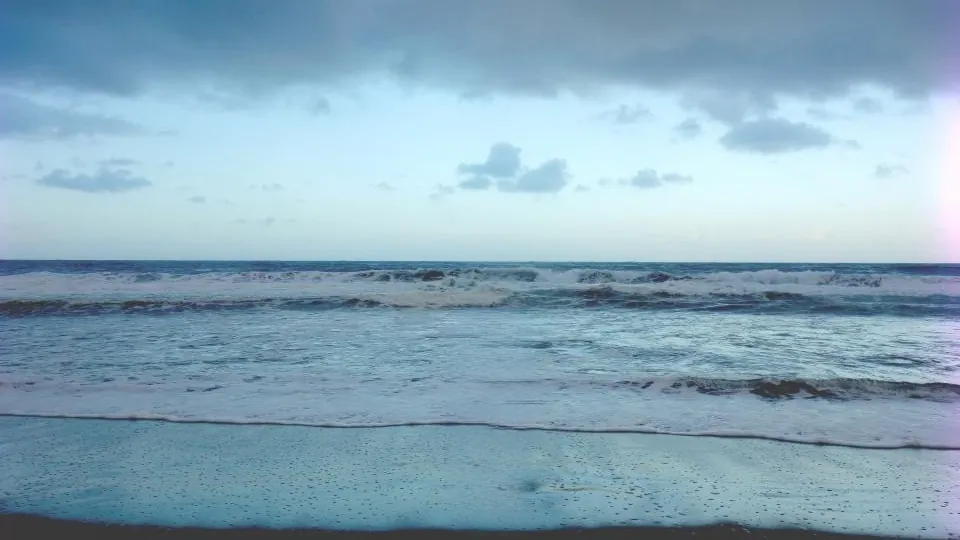
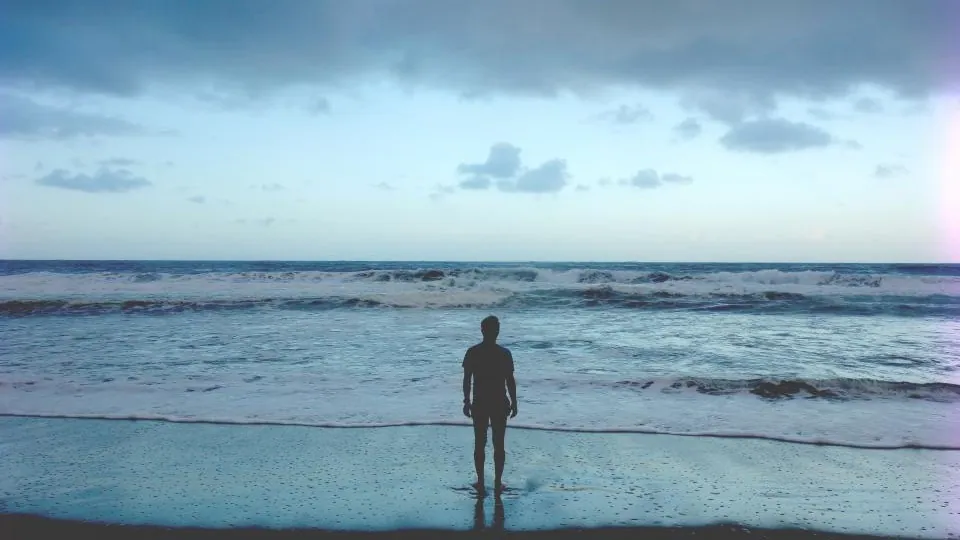
Gone without a trace
- Paint over what you want removed
- The waves and sand are rebuilt behind it
- Done in a few seconds
You choose what goes
Paint over anything: tourists, power lines, logos, text, blemishes or stray objects. Use the rectangle for straight-edged items and the eraser to refine.
A natural fill
The AI rebuilds what was behind the object from the surrounding scene, matching texture, light and perspective.
Watermark everywhere?
For marks that cover the whole image, the watermark remover finds and removes them automatically, no brushing needed.
Remove a watermark automatically
How it works
Upload a photo
Drop it, paste it, or load it from a link. Up to 20 MB.
Paint over the object
Use the brush or rectangle. Mark less than half of the image.
Remove and download
Press Remove, check the result, and download it.
How does AI object removal work?
You mark the object, and an inpainting model fills that area with new pixels that continue the surrounding scene. It looks at textures, edges and lighting around the hole so the fill blends in.
It’s the fastest way to remove photobombers, signs, cables and small distractions from travel, product and real-estate photos.
Questions
Ready to clean up your photo?
Free, no sign-up, just paint and remove.