Retouch product photos with AI
Paint over a product and AI smooths scuffs, dust and uneven surfaces while keeping its shape. Free, no sign-up.
- Paint the area in your browser
- Modes for glass, metal, jewelry and bags
- Adjustable strength
or drop a file here, or paste with Ctrl+V
JPG, PNG, WEBP, BMP, TIFF, GIF, up to 30 MB
No image? Try one:
Polished surfaces, same product
Pick an example, then compare.
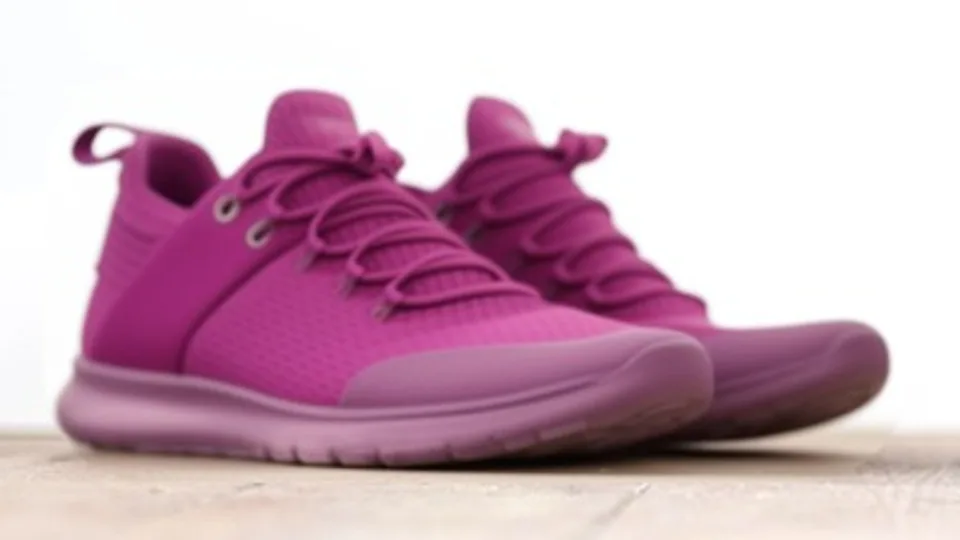
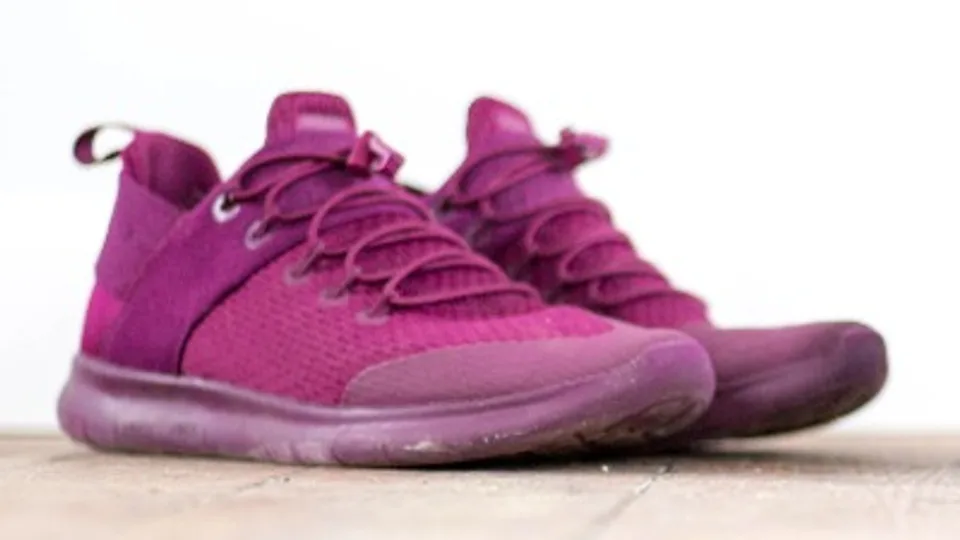
Shop-ready products in one pass
- Cleans scuffs, dust and creases
- Keeps stitching and edges sharp
- Only the area you paint changes
Paint exactly what to retouch
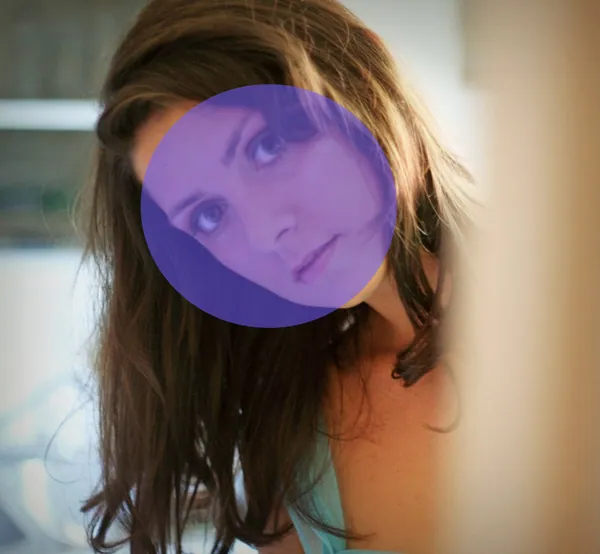
Brush over the product or part you want polished. Use the eraser to fix mistakes. Nothing outside the painted area changes.
Modes for tricky materials
Pick General, Advanced, Glass and transparent, Metal, Jewelry and accessories, or Bags. Each one is tuned for how that material reflects light.
Control the strength
In General mode, set how much surfaces are smoothed and how strongly edges and lines are kept.

How it works
Upload a photo
JPG, PNG, WEBP, BMP or TIFF up to 30 MB.
Paint over the area
Choose the material type and strength, then press Retouch.
Compare and download
Drag the slider to compare. Edit and retouch again if you want a different result.
What is AI product retouching?
Product retouching removes the small flaws a camera picks up: scuffs, dust, fingerprints, uneven surfaces and harsh reflections. The AI rebuilds the painted area so the product looks clean while keeping its shape, logo and edges.
Pair it with background removal and the background generator for complete marketplace-ready product shots.
Questions
Ready to polish your product photos?
Free, no sign-up, just paint and retouch.